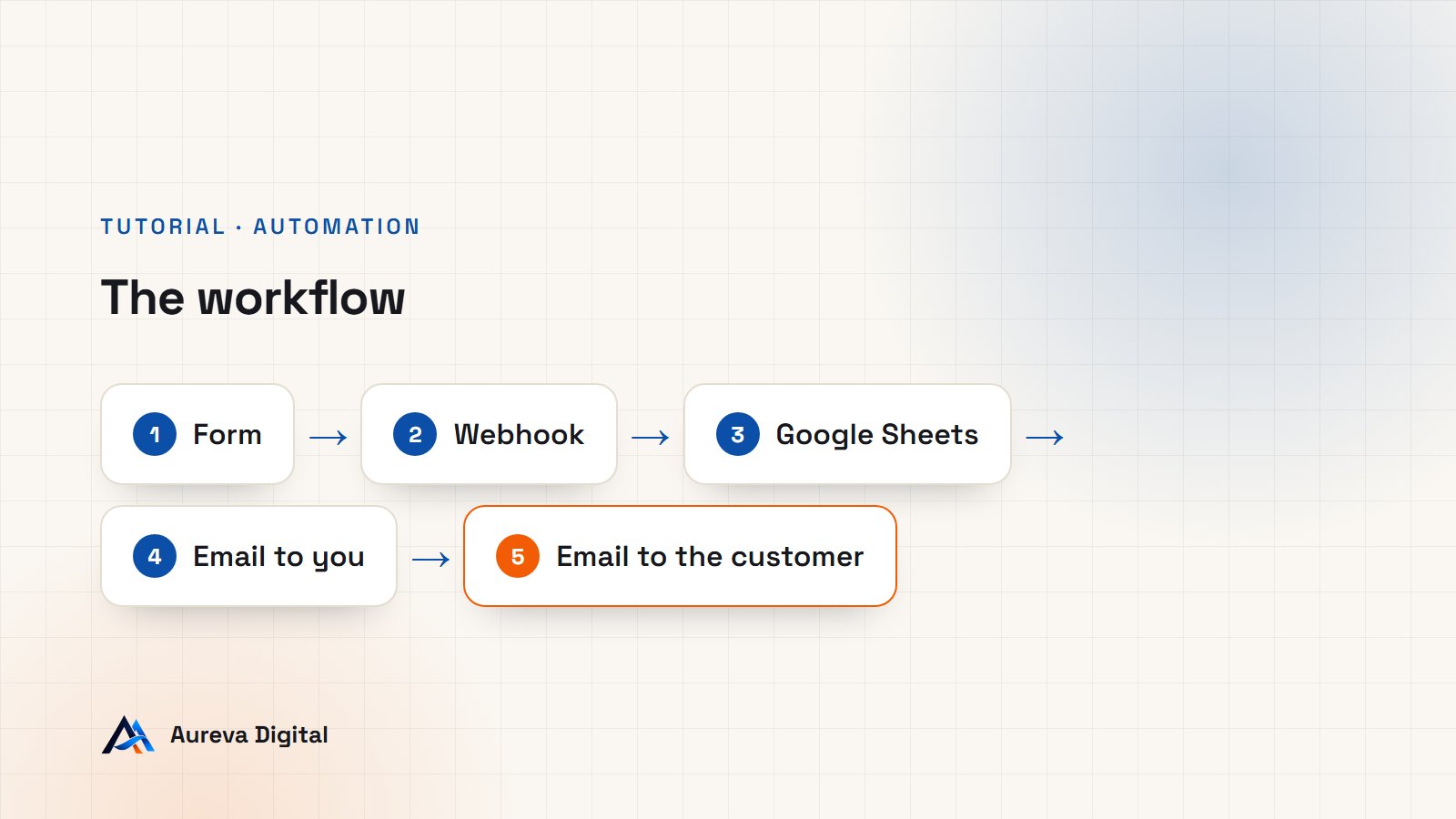
An enquiry arrives on your site. You read it, copy it into a spreadsheet, and reply to the customer that you have received it. Three actions, ten times a week. n8n is an automation tool that performs those actions for you: it receives the information, then runs the sequence you have drawn. This tutorial builds a first complete n8n workflow with you: receive a form, add it to Google Sheets, alert yourself and send the customer an acknowledgement.
Key takeaway. In n8n, a workflow is a series of connected blocks. The first block waits for an event, the following ones act. You write no code: you pick blocks, connect them and say which data passes from one to the next.
Contents
n8n in two minutes
n8n looks like a large blank page, the canvas, on which you place blocks called nodes. There are two families:
- Triggers, which start the workflow: a form received, a set time, a new email.
- Actions, which do something: write a row in a spreadsheet, send a message, call another service.
Data flows from left to right, from one node to the next. Each node receives what the previous one produced and can use it.
n8n comes in two forms. The version hosted by n8n is used from a browser, by subscription. The self-hosted version is installed on your own server: the software is then free, and you pay only for the server. We compare n8n with its main competitor in our article on n8n and Make automations for a small business.
| n8n version | For whom | What you manage |
|---|---|---|
| Hosted by n8n | Starting fast, with no technical work | Nothing: n8n handles the server and updates |
| Self-hosted | Controlling your data and costs | The server, updates and backups |
What you need for this n8n tutorial
- Access to n8n, hosted or installed on your server.
- A Google account, for the Google Sheets spreadsheet.
- A sending email address: a Gmail account or the SMTP settings of your business address.
- A form on your site, or simply a tool to send a test request.
Step 1: create the workflow
Log in to n8n, then create a new workflow from the home screen. Give it a meaningful name straight away, for example “Website enquiries to spreadsheet and email”. In six months, when you have ten workflows, you will be glad not to hunt for the one called “My workflow 3”.
The canvas is empty, with a button to add the first node.
Step 2: add the Webhook trigger
A webhook is an internet address that waits to be sent data. It is the front door of your n8n workflow.
- Click the button to add the first node and search for “Webhook”.
- In the HTTP method setting, choose POST.
- Leave the other settings as they are.
The node shows two addresses, and the difference between them is the most common source of error for beginners:
| Address | When it works | What it is for |
|---|---|---|
| Test URL | Only while you are listening for a test event in the editor | Building and trying the workflow |
| Production URL | Only when the workflow is active | Real operation, day and night |
Copy the test URL for now.
Step 3: send a first piece of test data
To configure the next nodes, n8n needs to see what your data looks like. Click the button that makes the webhook listen for a test event, then send it a form.
From an Elementor Pro form
Open your form in Elementor. Under “Actions After Submit”, add Webhook, then paste the test URL into the field that appears. Save and fill in the form on your site.
From another WordPress form
Add this code with the Code Snippets plugin, replacing the address and field names with yours. The example is for Contact Form 7:
add_action( 'wpcf7_mail_sent', function () {
    $submission = WPCF7_Submission::get_instance();
    if ( ! $submission ) {
        return;
    }
    $d = $submission->get_posted_data();
    wp_remote_post( 'https://YOUR-N8N/webhook/YOUR-PATH', array(
        'timeout'  => 8,
        'blocking' => false,
        'headers'  => array( 'Content-Type' => 'application/json; charset=utf-8' ),
        'body'     => wp_json_encode( array(
            'name'    => $d['your-name'] ?? '',
            'email'   => $d['your-email'] ?? '',
            'message' => $d['your-message'] ?? '',
        ) ),
    ) );
} );
With no form, just to try
If you only want to test, send a request from a terminal:
curl -X POST "https://YOUR-N8N/webhook-test/YOUR-PATH" \
  -H "Content-Type: application/json" \
  -d '{"name":"Claire Martin","email":"claire@example.com","message":"Hello, I would like a quote."}'
As soon as the request arrives, the Webhook node displays the data received. Your fields are in the “body” part: that is where you will fetch them in the next steps.
Step 4: add the enquiry to Google Sheets
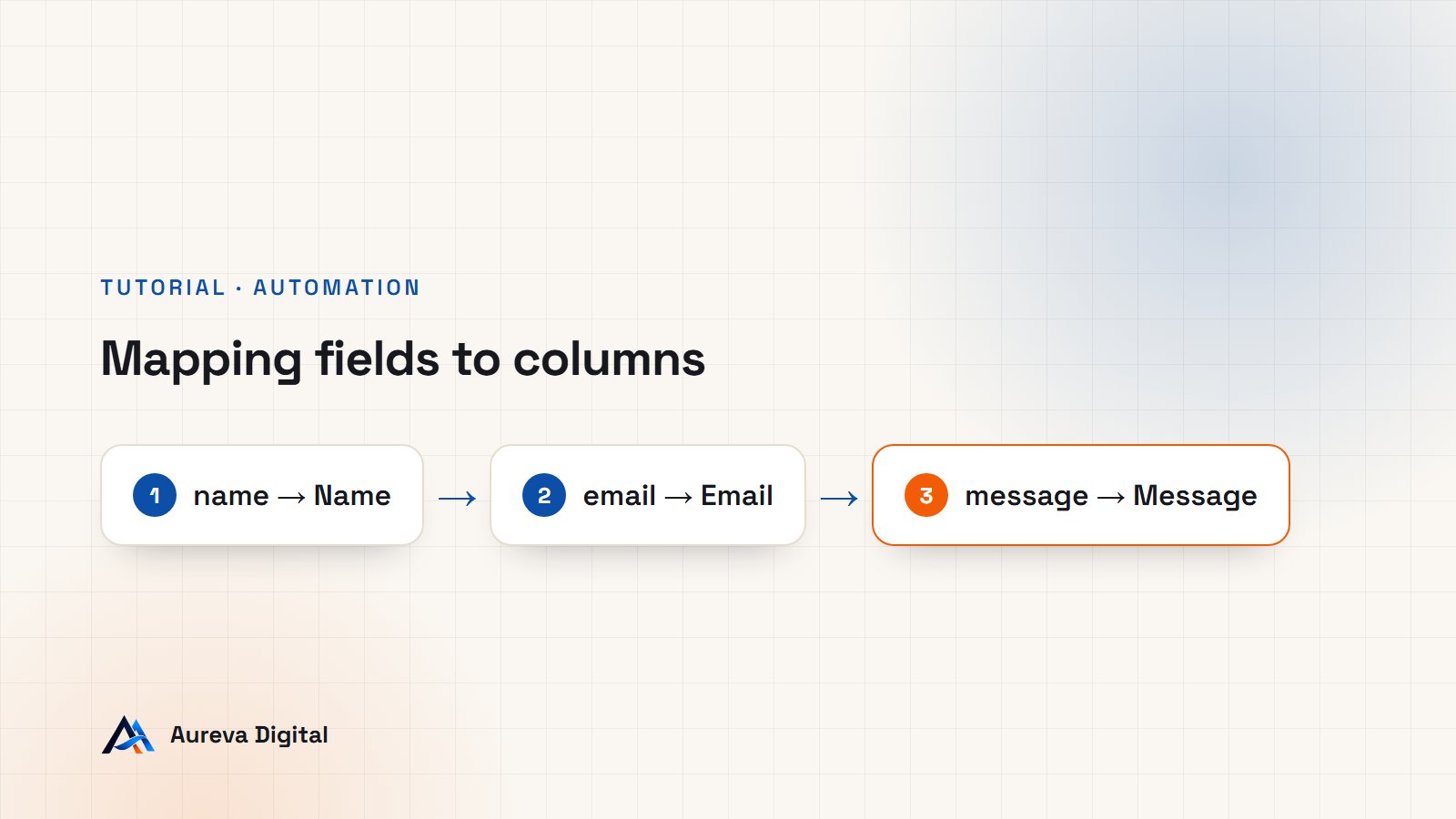
First prepare a Google Sheets spreadsheet with the headings Date, Name, Email and Message on the first row.
- In n8n, click the plus sign to the right of the Webhook node and search for “Google Sheets”.
- Choose the operation that appends a row to a sheet.
- Under “Credential”, create a connection to your Google account and follow the authorisation window.
- Select your document, then the tab.
- n8n displays your columns. For each one, drag the matching field from the left-hand panel.
When you drag a field, n8n writes an expression for you, for example {{ $json.body.name }}. It means: “take the value of the name field in the data received”. For the Date column, use the expression {{ $now }}, which gives the current date and time.
Click the button that runs this single node, then look at your spreadsheet: a row should be there.
Step 5: alert yourself by email
- Add an email node after Google Sheets: “Gmail” if you use a Gmail account, or “Send Email” with the SMTP settings of your business address.
- Create the matching connection.
- As the recipient, enter your own address.
- As the subject, write for example
New enquiry from {{ $('Webhook').item.json.body.name }}. - In the body, include the customer’s email and message in the same way.
Note the form of the expression: $('Webhook') fetches data from the node named “Webhook”, even if another node sits between the two. It is the safe way to reach original data in the middle of an n8n workflow.
Step 6: send the customer an acknowledgement
Add a second email node, this time with the customer’s address as the recipient: {{ $('Webhook').item.json.body.email }}.
Write a short message, as you would write it yourself:
- thank the person by their first name;
- tell them when you will reply, with a deadline you will keep;
- give a way to reach you faster if it is urgent.
An acknowledgement reassures, provided a real reply follows. If it promises a response “within 24 hours” and you answer four days later, it does more harm than good.
Step 7: filter out incomplete enquiries
Between the Webhook and Google Sheets, insert an IF node. It splits the flow into two branches according to a condition.
- Set the condition to: the email field contains the
@character. - Connect the “true” output to Google Sheets.
- Leave the “false” output unconnected.
Bots that fill in forms at random will be filtered out before they clutter your spreadsheet and receive an email. You can add other conditions: a message of at least ten characters, for example.
Step 8: activate the workflow and go live
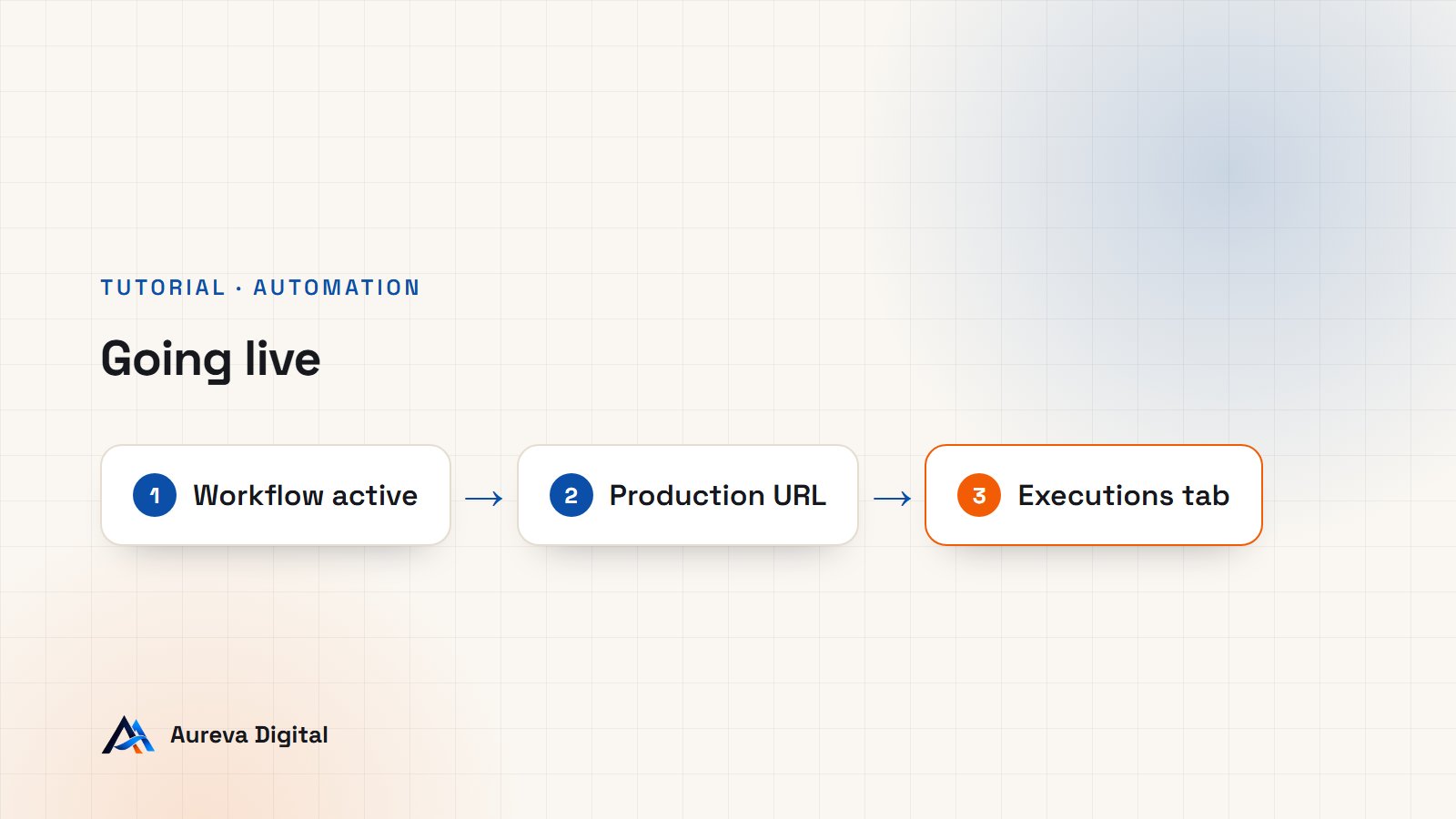
As long as the workflow is not active, only the test URL works, and only while you are listening.
- Save the workflow.
- Activate it with the switch at the top of the editor. Depending on your version of n8n, the button may be called “Activate” or “Publish”.
- Copy the production URL from the Webhook node.
- Replace the test URL with this production URL in your form or in your WordPress code.
- Send a real form from your site.
Then open the Executions tab: each run of the workflow is listed there, with its result. By clicking a run, you see what each node received and produced.
Making the n8n workflow reliable
A workflow that fails silently is worse than no workflow: you believe everything is handled.
- Create an error workflow. In a workflow’s settings, n8n lets you designate another workflow to run on failure. Have it send you an email.
- Keep the form’s email. The notification sent by WordPress remains your safety net if n8n is unavailable.
- Name your nodes. “Add to enquiries spreadsheet” is clearer than “Google Sheets1”.
- Protect the webhook. In the Webhook node, enable header authentication, and send the same header from your site. Otherwise, anyone who knows the address can send data to it.
- Watch the executions during the first week, then once a month.
- Back up. Export the workflow as a JSON file from the editor menu, and keep it outside n8n.
Understanding the data that flows
What confuses people most at first is not the tool, it is the data. Three notions are enough to find your way.
An item. Each form received is an item: a small set of information that travels from one block to the next. If ten forms arrive, the workflow runs ten times, once per item.
Fields. An item contains fields, each with a name and a value: the “name” field is “Claire Martin”, the “email” field is her address. For a webhook, your fields are stored in a part called “body”, the body of the request. Other parts exist, such as headers, but you will almost never need them.
Expressions. An expression is a small formula in double curly braces that says where to fetch a value. You do not have to write them: when you drag a field into a box, the editor composes them. Just learn to read them. $json refers to the data received by the current block, and $('Block name') to the data of a specific block further up the chain.
A useful habit: after each block you add, run it and look at its output. You see exactly what the next block will receive. Most failures come from a value you thought was there and was not, or that had another name.
Organising your automations from the start
A first workflow quickly calls for a second, then a fifth. A few early habits prevent mess.
- One workflow, one job. Three short workflows are better than one that does everything. Each can be tested and fixed separately.
- A name that says what happens, following the pattern “Event to result”: “Contact form to spreadsheet and email”.
- A note on the canvas. The editor lets you stick notes. Write why the workflow exists and who to alert if it fails.
- Well-named credentials. “Gmail website contact” is easier to find than “Gmail account 2”.
- A copy before any big change. Duplicate the workflow, work on the copy, then replace the original when everything works.
Also keep a list of your automations outside the tool, in a simple document: what each one does, since when, and with which accounts. The day a password changes or a service closes, you will know in two minutes what is affected.
Common n8n errors
| What you see | Likely cause | Fix |
|---|---|---|
| The webhook replies that it is not registered | You are calling the test URL without listening | Start listening again, or activate the workflow and use the production URL |
| Nothing happens in production | The workflow is not active | Activate it |
| Spreadsheet columns stay empty | The expression does not point to the right field | Check that your fields are in “body” |
| Google refuses the connection | The authorisation expired or was revoked | Reconnect the account in n8n’s credentials |
| The email lands in spam | Sending address poorly configured | Send from your business address, through SMTP |
| The customer receives two acknowledgements | The form calls the webhook twice | Keep a single send, by the plugin or by code |
Three n8n workflows to build next
- Quote follow-up. A scheduled trigger reads your spreadsheet each morning, spots quotes sent more than five days ago with no reply, and sends you the list.
- Appointment reminder. The day before each appointment in your calendar, n8n sends the customer a reminder.
- Weekly report. Every Monday, n8n counts the week’s enquiries and sends you a summary.
Each one uses exactly the same building blocks as this tutorial: a trigger, a read or a write, a condition, a message.
n8n or another solution?
n8n is not always the right answer. For a single simple action, such as adding a form to a spreadsheet, a script is enough: we show it in our tutorial WordPress form to Google Sheets. n8n takes the lead as soon as you chain several services, add conditions or want to see the history of each run.
If you would rather have these workflows built for you, that is what our automation service is for.
Frequently asked questions
Is n8n free?
The self-hosted version can be used free of charge, under a licence that sets terms for commercial use: you pay only for your server. The version hosted by n8n is a subscription. Check the current terms and prices on the n8n website.
Do I need to code to use n8n?
Not for this kind of workflow. Expressions in double curly braces are built by dragging fields. A code node exists for special cases, but you can go a long way without it.
Can n8n replace my CRM?
No. n8n carries and transforms data between your tools, it does not store it. It feeds a spreadsheet or a CRM, it does not replace one.
Is my data safe?
With the self-hosted version, it stays on your server. With the hosted version, it passes through n8n’s servers. In both cases, mention in your privacy policy the services that process your visitors’ enquiries.
What happens if n8n is down?
Forms sent during the outage are not processed. That is why you should keep the form’s email notification and an error workflow.
How long does it take to build this workflow?
Allow one to two hours the first time, long enough to create the connections to Google and your mailbox and to understand expressions. The second workflow takes half as long, because the connections already exist and the logic is the same. Building is rarely the longest part: it is the testing, with real enquiries and awkward cases, that separates a workflow that works in a demo from one you can rely on.
Which workflow should I start with?
With the task you do most often and that bores you most, provided it always follows the same steps. A repetitive, predictable task automates well. A task that needs judgement every time, much less so.
In short
- An n8n workflow starts with a trigger and chains actions.
- The Webhook has two addresses: the test one to build, the production one to run.
- Google Sheets receives one row per enquiry, thanks to expressions.
- Two emails go out: one to you, one to the customer.
- An IF node filters out incomplete enquiries.
- Activate the workflow, then watch the Executions tab.
Sources

Written by Amadeus AvlekaFounder of Aureva Digital, designer and web developer based in Cotonou. Learn more