You have a WordPress site, products to sell, and you want customers to be able to order online. WooCommerce is the free plugin that turns a WordPress site into a store. This tutorial takes you from installation to the first test order, in nine steps, with ten products to begin with. Ten well-presented products sell better than a hundred rushed listings, and they are enough to check that everything works before you grow the catalogue.
Key takeaway. WooCommerce is free, but a store has costs: hosting, the domain name, the payment provider’s fees and, sometimes, a few plugins. Installation takes an hour. The real work is the product pages, the shipping settings and the legal pages.
Contents
What you need before installing WooCommerce
- An up-to-date WordPress site, with decent hosting. A store asks more of the server than a brochure site.
- HTTPS switched on. Without the padlock in the address bar, no serious payment provider will accept your store.
- Ten products ready: for each, a name, a price, two or three sharp photos on a plain background, and a description of a few lines.
- Your terms of sale: delivery times, areas served, shipping costs, returns policy.
- An account with a payment provider, or at least a decision on which one you will use.
If you are still hesitating between solutions, first read our comparison Shopify or WooCommerce. WooCommerce suits you when you want to own your store and develop it freely.
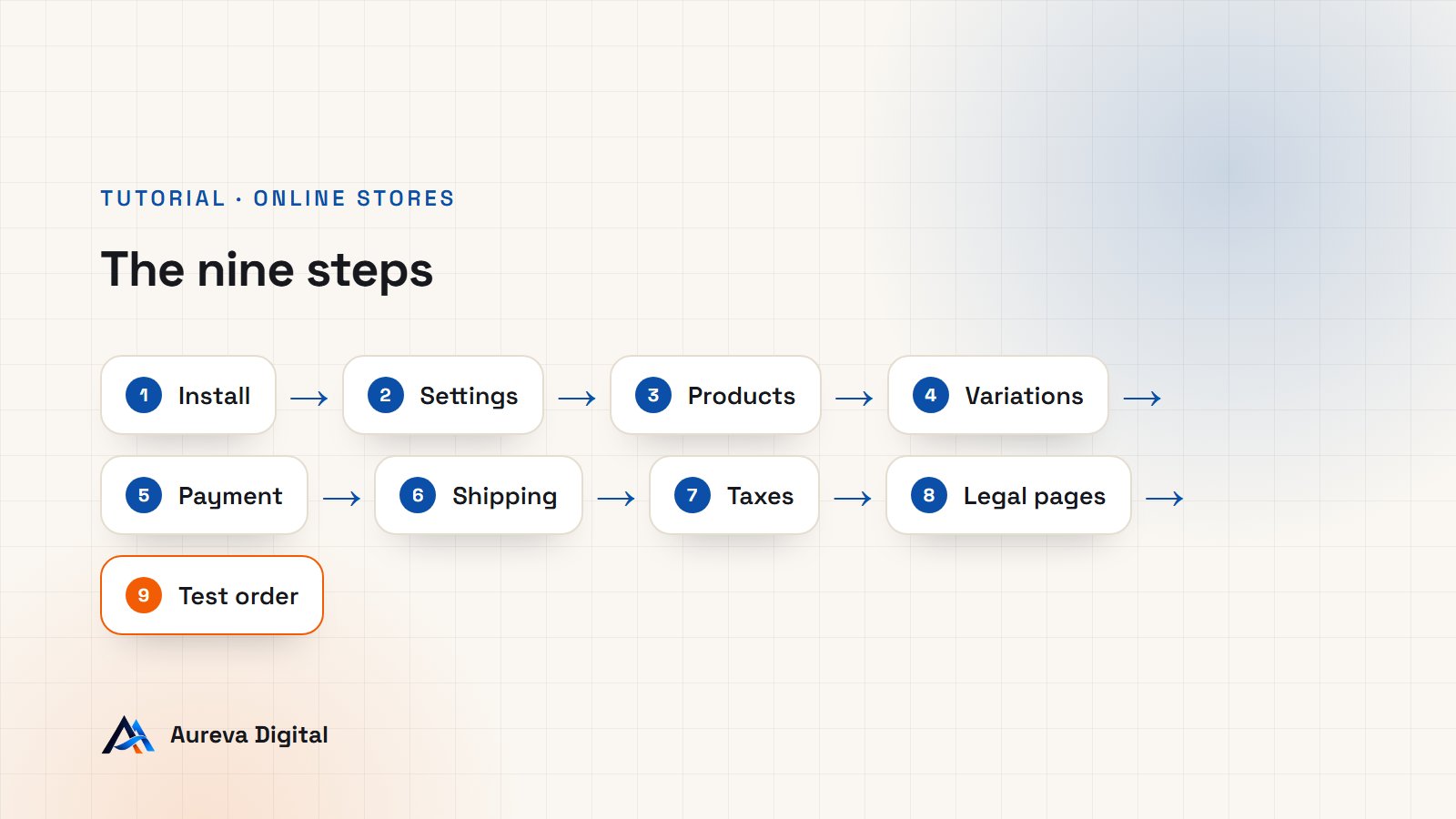
Step 1: install WooCommerce
- In the WordPress dashboard, open Plugins, then Add New Plugin.
- Type “WooCommerce” in the search box.
- Click Install Now, then Activate.
WooCommerce then starts a setup wizard. It asks for your store’s country, your industry and the type of products you sell. Answer simply: every answer can be changed later. The wizard also offers to install extra plugins. Untick whatever you do not need right away: a light store is faster, and you can always add a tool the day it becomes useful.
Once the wizard is finished, a new WooCommerce menu and a Products menu appear in the left column. WooCommerce has also created four pages: Shop, Cart, Checkout and My account. Do not delete them, the store depends on them.
Step 2: set the store basics
Open WooCommerce, then Settings. The “General” tab holds what everything else uses.
- The store address. It is used to calculate taxes and shipping costs.
- Selling locations. Choose “Sell to specific countries” and list only those you can really deliver to.
- The currency. Euro, pound, CFA franc, Canadian dollar: this is the one your prices are shown in.
- The price format. Position of the symbol, thousands separator, number of decimals.
These settings look trivial, but a wrong currency or a forgotten country blocks orders without a clear message. Take two minutes to read them again.
Step 3: create your first WooCommerce product
Open Products, then Add New.
- The name. Clear and precise: “Shea butter soap 100 g” rather than “Soap”.
- The long description, in the large text area: who the product is for, what it brings, its composition or dimensions, how to care for it.
- Product data. Leave “Simple product”, then enter the regular price. The sale price is optional.
- Inventory. Give a reference (SKU) and, if you manage stock, the quantity available.
- Shipping. Enter the weight and dimensions if your shipping costs depend on them.
- The short description, further down: two or three lines shown next to the photo. It is what people read first.
- The product image and gallery, in the right-hand column.
- The category, also on the right. Create three or four, no more at the start.
Click Publish, then “View product” to see it as a customer would. Repeat for your nine other products. To save time, use the “Duplicate” link under a product name in the list, then edit the copy.
What makes a good product page
| Element | What works | What drives people away |
|---|---|---|
| Photos | Plain background, good light, several angles | Blurry or dark photo |
| Name | Precise, with the size or volume | Vague or overlong name |
| Short description | The benefit in two lines | A technical wall of text |
| Price | Clearly shown, taxes stated | Costs discovered at the last moment |
| Availability | Stock and lead time visible | Nothing stated |
Step 4: handle sizes and colours with variations
If a product comes in several sizes or colours, do not create one product per option. WooCommerce offers the variable product.
- In the product data, replace “Simple product” with “Variable product”.
- In the Attributes tab, add for example “Size” with the values S, M, L, and tick “Used for variations”.
- In the Variations tab, generate the variations from the attributes.
- Give each variation its price and, if needed, its stock and photo.
Your customer then chooses a size from a list, on a single page. It is clearer for them, and simpler for you to keep up to date.
Step 5: set up payment
Open WooCommerce, Settings, Payments tab. WooCommerce offers several methods, to be switched on according to your market.
| Payment method | For whom | Good to know |
|---|---|---|
| Card through a provider (Stripe, WooPayments, PayPal) | Customers in Europe and North America | A fee per sale, usually no subscription |
| Mobile money through a local aggregator | Customers in West Africa | Check that the aggregator provides a WooCommerce plugin |
| Bank transfer | Large orders, business customers | The order stays on hold until the money arrives |
| Cash on delivery | Local delivery | Risk of refusal on delivery |
Each provider is installed with its own plugin, then asks you to connect your account. Always switch on test mode at first: it lets you place fake orders with card numbers supplied by the provider, with no real money moving.
Two pieces of advice. Offer the payment method your customers already use, not the one that suits you. And do not multiply options: two well-chosen methods beat six.
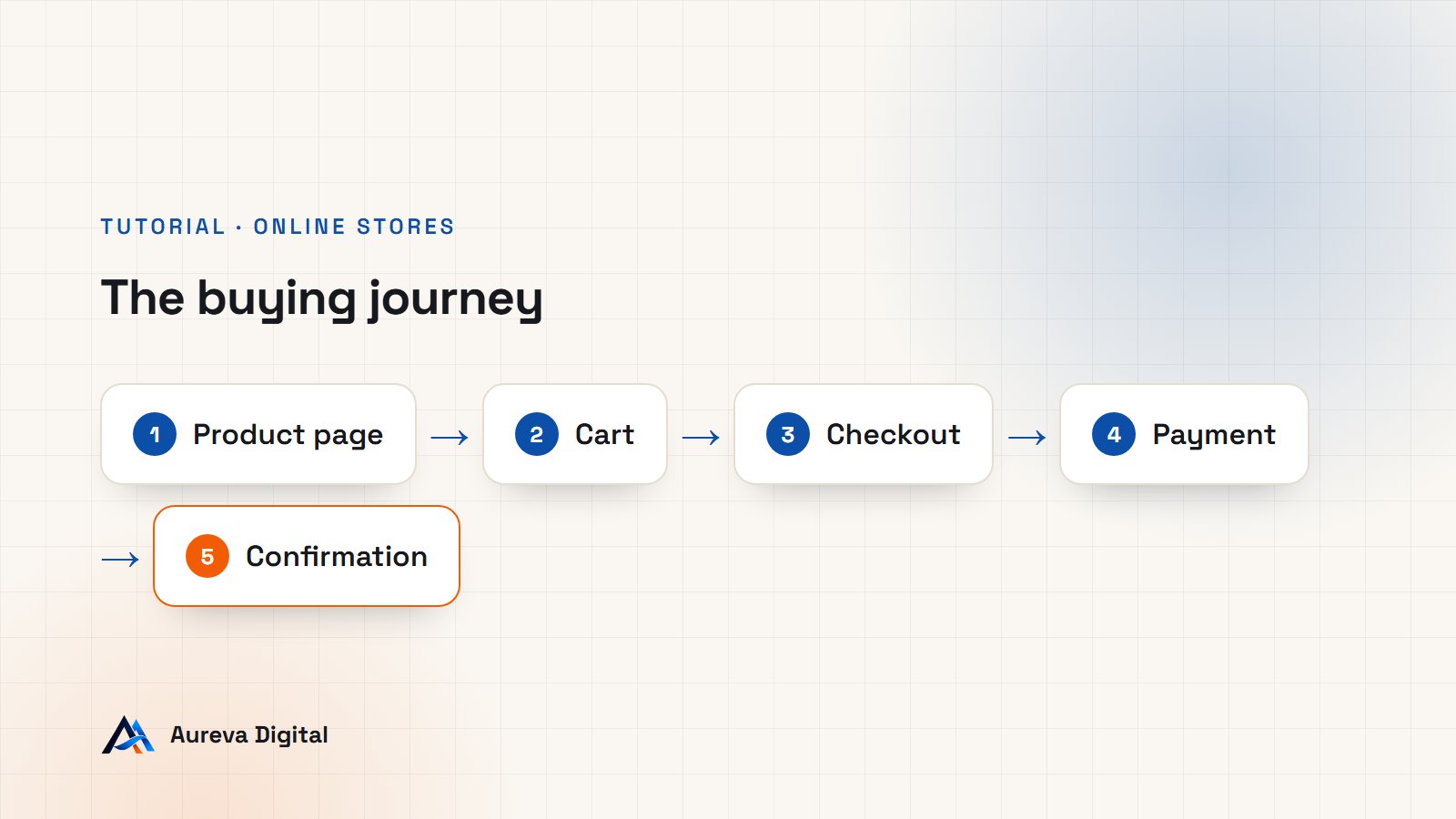
Step 6: set up shipping
Still in the settings, open the Shipping tab. WooCommerce works with shipping zones: each geographic zone has its own methods and rates.
- Click Add zone.
- Give it a name, for example “Mainland UK”, and choose the regions concerned.
- Add one or more shipping methods.
Three methods are provided out of the box:
- Flat rate: a fixed price per order, or per item.
- Free shipping, which you can reserve for orders above a certain amount.
- Local pickup, for customers who come and collect their order.
Start simply: one zone, one flat rate, and free shipping from an amount that encourages adding one more item. Local pickup is valuable if you have premises: it removes shipping costs and brings the customer to you.
Create one zone per region where your rates differ. A customer outside all your zones will not be able to order: that is intended, but check you have not forgotten anyone.
Step 7: deal with taxes
In the “General” tab of the settings, tick “Enable taxes” if you are liable for them. A new Tax tab appears.
- State whether your prices are entered inclusive or exclusive of tax. Choose once and for all: changing later means reviewing every price.
- Under “Standard rates”, add one line per country, with the applicable rate.
- Choose to display prices including tax in the store if you sell to individuals.
VAT and sales tax rules depend on your status, your country and your customers’ country. A business below the registration threshold does not charge it, and distance selling between countries has its own rules. Have your settings checked by your accountant before opening: it is an hour that avoids a reassessment.
Step 8: prepare the legal pages and emails
An online store must display several pieces of information. Create these pages under Pages, then link them in the footer.
- Terms and conditions: prices, payment, delivery, returns, guarantees.
- Legal notice: who is selling, with which contact details.
- Privacy policy: which data you collect and why.
- Delivery and returns: lead times, costs, how to send an item back.
In WooCommerce, Settings, Advanced tab, select your terms and conditions page: WooCommerce will add a tick box at checkout.
Then open the Emails tab. WooCommerce sends a message at each stage: new order, processing order, completed order. Check the sender name and address, and add your logo. If your emails land in spam, install an SMTP plugin connected to your business address.
Step 9: place a test order
This is the step many people skip, and it is the one that reveals problems.
- Check that payment is in test mode.
- Open the store in a private window, as a stranger would.
- Add a product to the cart, then go through checkout to the end.
- Pay with your provider’s test card number.
- Check that the confirmation email arrives, for the customer and for you.
- In WooCommerce, Orders, open the order and set it to “Completed”.
- Run the test again on a phone.
Write down everything that made you hesitate: a button that is hard to see, a surprising shipping cost, a useless field. What bothers you will bother your customers.
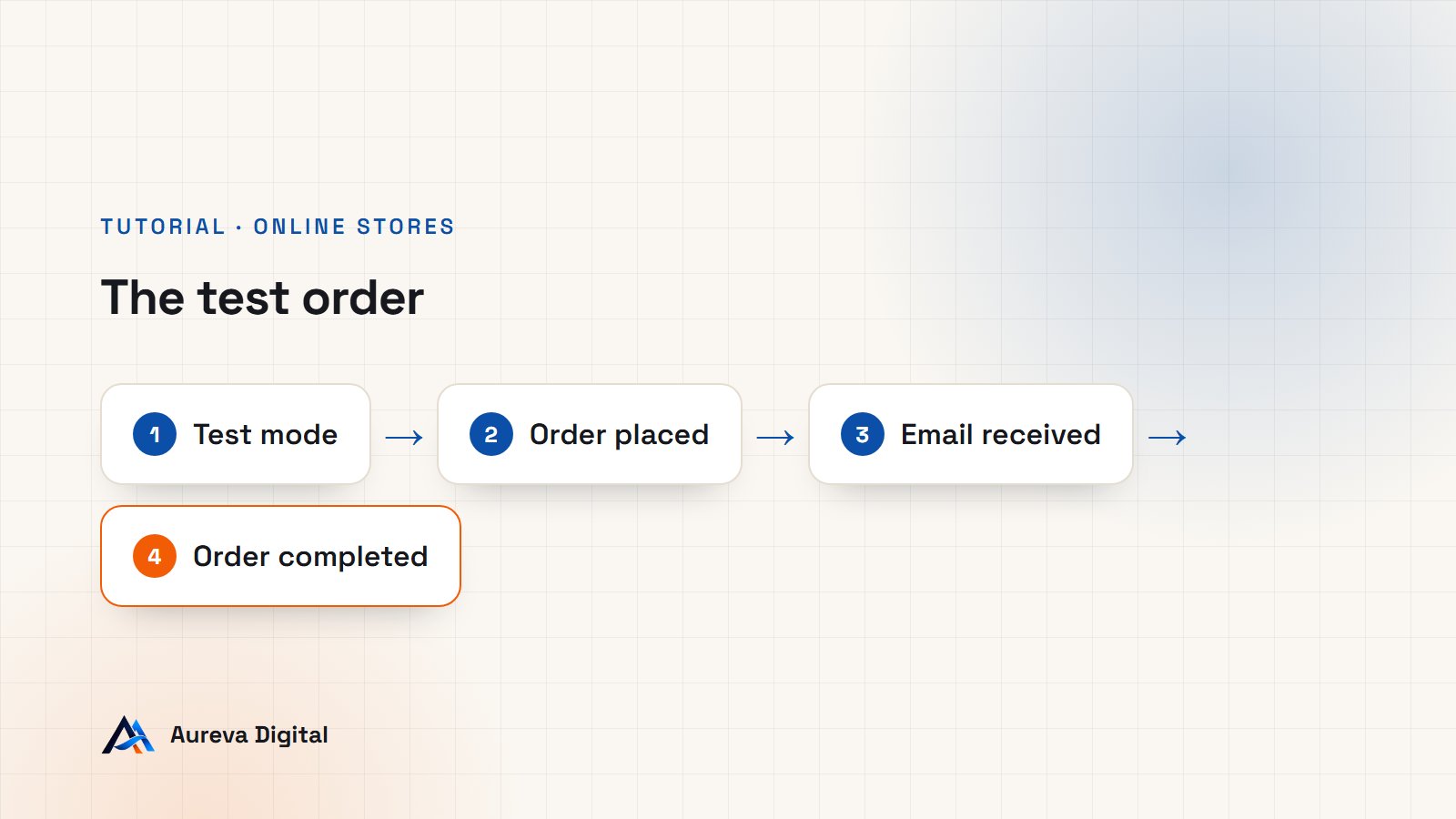
The checklist before opening
- All ten products have a precise name, a price, photos and a short description.
- Stock is accurate.
- Shipping costs are shown before payment.
- Every payment method has been tested.
- Order emails arrive in the inbox.
- Legal pages are online and linked in the footer.
- The store is readable and usable on a phone.
- Payment test mode is switched off.
- An analytics tool is in place.
- An automatic site backup is scheduled.
Point 8 deserves a double check: a store opened in test mode takes no money.
Common WooCommerce mistakes
| Mistake | Consequence | How to avoid it |
|---|---|---|
| Installing twenty plugins on day one | Slow store, conflicts | Add only what answers a real need |
| Forgetting a shipping zone | Some customers cannot order | Test with an address from each zone |
| Showing shipping costs at the last step | Abandoned carts | State them on the product page |
| Heavy photos | Slow pages on mobile | Compress images before uploading |
| Never updating | Security holes | Update WooCommerce and WordPress monthly, after a backup |
| Staying in test mode | No sale is collected | Check live mode on opening day |
How long it takes and what it costs
| Item | Order of magnitude |
|---|---|
| WooCommerce | Free |
| Hosting and domain name | A yearly subscription, varying by host |
| Payment fees | A percentage per sale, depending on the provider |
| Paid plugins | None is required to start |
| Time for ten products | One to two days, photos included |
Prices change often: check them on each provider’s site before committing. For a full budget, see our article on what a professional website costs.
After opening: the first three weeks
A WooCommerce store is not set once and for all. The first weeks are for observing and correcting.
- Week 1: watch your orders closely. Handle each one the same day, and note every question a customer asks. A question that comes up twice points to information missing from the site.
- Week 2: study abandoned carts. In WooCommerce’s Analytics menu, compare the number of visits, add-to-carts and orders. If many carts do not reach payment, shipping costs or payment methods are the first suspects.
- Week 3: improve the pages that sell. Add photos and details to the two or three most viewed products. That is where each improvement pays most.
Add new products only when the first ten sell properly. A catalogue that grows too fast hides problems instead of solving them.
Getting your WooCommerce store known
An online store does not receive visitors simply by existing. Four free actions bring the first results.
- Tell your current customers. A message to those who already buy from you, in store or by phone, often brings the first orders.
- Link the store to your social media. Put the link in your profile and point each post to the page of the product shown.
- Create or update your Google Business Profile, with the store’s address.
- Take care with your product copy. A precise product name and a useful description are what Google reads to show you in its results. We detail this work in our SEO and GEO guide.
Paid advertising can come later, once you know which products sell and at what price: launching it sooner means paying to send visitors to a store that is still imperfect.
Frequently asked questions
Is WooCommerce really free?
The plugin is, and it is enough to sell. You pay for hosting, the domain name and payment fees. Some advanced features rely on paid plugins, but none is needed to open.
Do I need to code to use WooCommerce?
Not for the installation, products and settings described here. A developer becomes useful for a custom design, an integration with till or accounting software, or a slow store.
How many products can WooCommerce handle?
Several thousand, provided the hosting is suitable. The limit comes from the server and the quality of the theme, not from WooCommerce.
Can I sell services or files?
Yes. Tick “Virtual” for a service with no delivery, and “Downloadable” for a file the customer receives after payment.
What if my customers do not buy?
First look at where they stop. If they leave the product page, work on the photos and the description. If they abandon at the cart, look at shipping costs and payment methods.
Do I need a special theme for WooCommerce?
Not necessarily. Most recent WordPress themes are compatible with WooCommerce. Check three things before deciding: the theme states this compatibility, it is updated regularly, and its demo stays fast on a phone. A light, sober theme shows off your products; a theme loaded with effects slows the store and distracts from what you sell.
How often should I update?
Once a month suits most stores. Always back up first, update WordPress, WooCommerce and then the other plugins, and place a test order right after. If an update causes a problem, the backup lets you roll back in a few minutes.
In short
- Install WooCommerce and answer the wizard simply.
- Set the address, the selling countries and the currency.
- Create ten careful products before adding more.
- Switch on one or two payment methods, in test mode.
- Define your shipping zones and costs, then your taxes.
- Publish the legal pages and check the emails.
- Place a full test order, on a computer and on a phone.
If you would rather hand over the setup, it is the core of our online stores service.
Sources

Written by Amadeus AvlekaFounder of Aureva Digital, designer and web developer based in Cotonou. Learn more