You receive your enquiries by email, then copy them by hand into a spreadsheet to track who has been called back. It wastes time, and one missed line costs a customer. This tutorial shows how to send every submission from your WordPress form to Google Sheets, automatically, with no paid plugin and no subscription. The method relies on a small free script, hosted by Google, and about ten lines of code on the WordPress side.
Key takeaway. You will create a Google Sheets spreadsheet, paste in a script that receives the data, then tell WordPress to send each form to that script. Allow thirty minutes the first time. It is the method we use on the Aureva Digital website for our own follow-up spreadsheet.
Contents
Why send your enquiries to Google Sheets
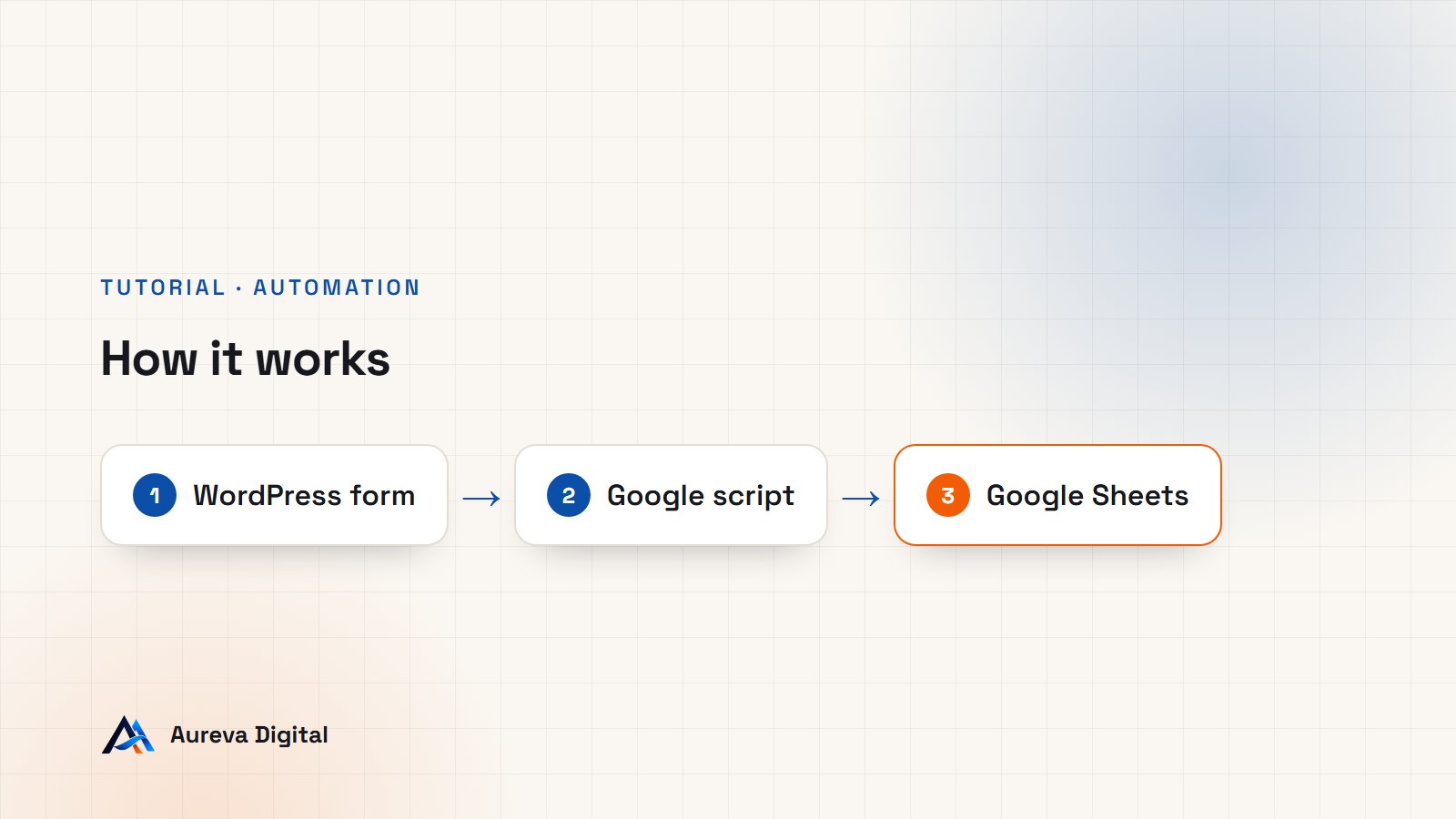
An email is read, then buried under the next ones. A spreadsheet stays. With one row per enquiry, you can see at a glance who wrote, when, about what, and who is still waiting for a reply. Google Sheets has three advantages for a small business: it is free, it opens on a phone, and it can be shared with a partner or an assistant without installing anything.
A Google Sheets spreadsheet also becomes the starting point for other automations. Once enquiries sit in rows and columns, you can filter them, count them per month, see where your best customers come from, or later plug in a tool such as n8n or Make.
| Method | Cost | What you need to know | Limit |
|---|---|---|---|
| Copying by hand | Free | Nothing | Missed lines, lost time |
| Paid WordPress plugin | Often a yearly subscription | Configuring a plugin | One more dependency on the site |
| n8n or Make | Free or paid depending on volume | Building a scenario | An external service to monitor |
| Google Sheets script (this tutorial) | Free | Copying and pasting code | You maintain it yourself |
What you need before you start
- A Google account, the one you will open the Google Sheets spreadsheet with.
- A WordPress site where you are an administrator.
- A form already in place. The examples cover Elementor Pro, Contact Form 7 and WPForms.
- A way to add PHP code: the free Code Snippets plugin, or the
functions.phpfile of a child theme.
You need no bank card, no API key and no Google Cloud account. Everything happens in Google Sheets and in WordPress.
Step 1: prepare the Google Sheets spreadsheet
- Open sheets.google.com and create a blank spreadsheet.
- Give it a clear name, for example “Website enquiries”.
- At the bottom of the screen, right-click the “Sheet1” tab, choose “Rename” and type
Enquiries. - On the first row, enter your column headings: Date, Name, Email, Phone, Message.
The tab name matters: the script will look for it under that exact name. If you call it something else, remember to change the script in the next step. Keep as many columns as there are fields in your form, in the same order: that is what keeps the Google Sheets spreadsheet readable six months from now.
Step 2: paste the script into Google Sheets
In your spreadsheet, open the Extensions menu, then Apps Script. An editor opens in a new tab, with some default code. Delete all of it and paste this instead:
var KEY = 'replace-this-with-a-long-secret-key';

function doPost(e) {
  var data = JSON.parse(e.postData.contents);
  if (data.key !== KEY) {
    return ContentService.createTextOutput('refused');
  }
  var sheet = SpreadsheetApp.getActiveSpreadsheet().getSheetByName('Enquiries');
  sheet.appendRow([
    new Date(),
    data.name || '',
    data.email || '',
    data.phone || '',
    data.message || ''
  ]);
  return ContentService.createTextOutput('ok');
}
This script does three things. It receives the data sent by your site. It checks that the data comes with the right key, so that it refuses anything not sent by you. Then it adds a row at the end of the “Enquiries” tab, with today’s date in the first column.
Replace the text between quotes on the first line with a key of your own: a string of about thirty letters and digits, with no spaces. Note it down, you will paste it into WordPress. Then save with the disk icon or Ctrl+S.
Adapting the script to your fields
If your form has other fields, such as “Budget” or “Project type”, add one line per field to the list, following the pattern data.budget || '', and add the matching column in Google Sheets. The name after data. is the one WordPress will send in step 5: both must be identical, with no accents or spaces.
Step 3: publish the script as a web app
For your site to talk to it, the script needs an address on the internet.
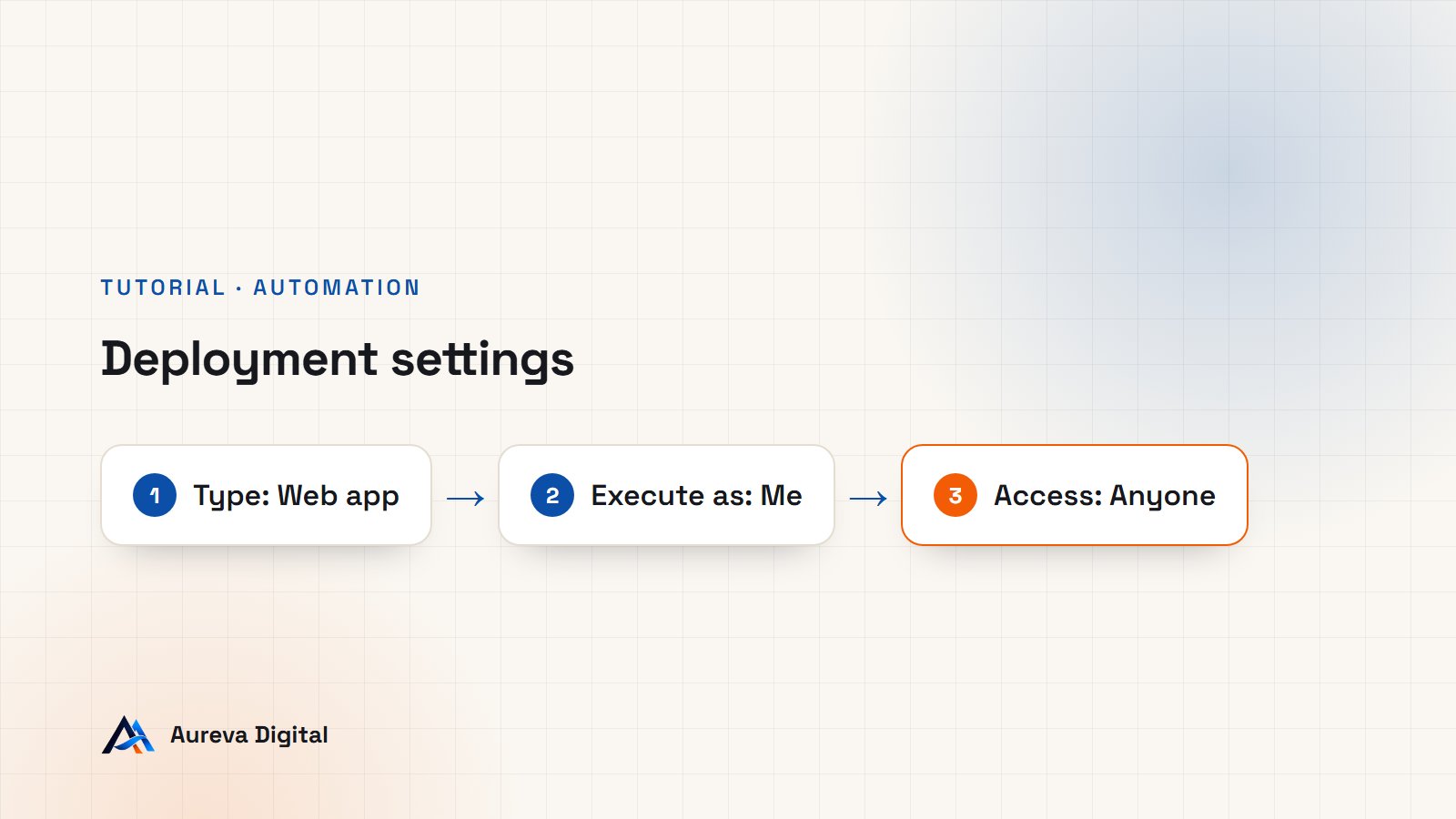
- At the top right of the editor, click Deploy, then New deployment.
- Click the gear icon next to “Select type” and choose Web app.
- Under “Execute as”, leave Me.
- Under “Who has access”, choose Anyone.
- Click Deploy.
“Anyone” often worries people. It only means the script’s address accepts requests from the internet, which is necessary since your site is not logged in to your Google account. Nobody can see your Google Sheets spreadsheet, and the key from step 2 refuses anything not sent by you.
Step 4: authorise the script
On the first deployment, Google asks you to authorise the script to edit your spreadsheets.
- Click Authorize access and choose your account.
- A screen says Google has not verified this app. That is normal: it is your own script, not a published app.
- Click Advanced, then the link that lets you go to the project.
- Click Allow.
A window then shows the Web app URL. It starts with https://script.google.com/macros/s/ and ends with /exec. Copy it: this is the address WordPress will send every form to.
Step 5: send the WordPress form to Google Sheets
It remains to tell WordPress: “each time a form is submitted, pass the answers to this address”. Open Code Snippets (or the functions.php file of your child theme) and first add this function, shared by all forms:
function mysite_to_sheets( $row ) {
    wp_remote_post( 'https://script.google.com/macros/s/YOUR_ID/exec', array(
        'timeout'  => 8,
        'blocking' => false,
        'headers'  => array( 'Content-Type' => 'application/json; charset=utf-8' ),
        'body'     => wp_json_encode( array_merge(
            array( 'key' => 'replace-this-with-a-long-secret-key' ),
            $row
        ) ),
    ) );
}
Replace the address with the one copied in step 4, and the key with the one from step 2. The 'blocking' => false setting matters: WordPress sends the data without waiting for Google’s reply. Your visitor therefore sees the confirmation message straight away, even if Google Sheets takes a second to respond.
Then add the block that matches your form plugin.
With an Elementor Pro form
add_action( 'elementor_pro/forms/new_record', function ( $record ) {
    $fields = array();
    foreach ( $record->get( 'fields' ) as $id => $field ) {
        $fields[ $id ] = $field['value'];
    }
    mysite_to_sheets( array(
        'name'    => $fields['name'] ?? '',
        'email'   => $fields['email'] ?? '',
        'phone'   => $fields['phone'] ?? '',
        'message' => $fields['message'] ?? '',
    ) );
} );
The words in square brackets (name, email…) are your field IDs. In Elementor, you find them by opening a form field, “Advanced” tab, “ID” line.
With Contact Form 7
add_action( 'wpcf7_mail_sent', function () {
    $submission = WPCF7_Submission::get_instance();
    if ( ! $submission ) {
        return;
    }
    $d = $submission->get_posted_data();
    mysite_to_sheets( array(
        'name'    => $d['your-name'] ?? '',
        'email'   => $d['your-email'] ?? '',
        'phone'   => $d['your-tel'] ?? '',
        'message' => $d['your-message'] ?? '',
    ) );
} );your-name, your-email and your-message are the default names given by Contact Form 7. Check yours in the form editor.
With WPForms
add_action( 'wpforms_process_complete', function ( $fields ) {
    $values = array_values( wp_list_pluck( $fields, 'value' ) );
    mysite_to_sheets( array(
        'name'    => $values[0] ?? '',
        'email'   => $values[1] ?? '',
        'phone'   => $values[2] ?? '',
        'message' => $values[3] ?? '',
    ) );
} );
Here the answers are taken in the order of the form fields: the first field goes into “name”, the second into “email”, and so on. Adjust the order to yours.
Step 6: test from end to end
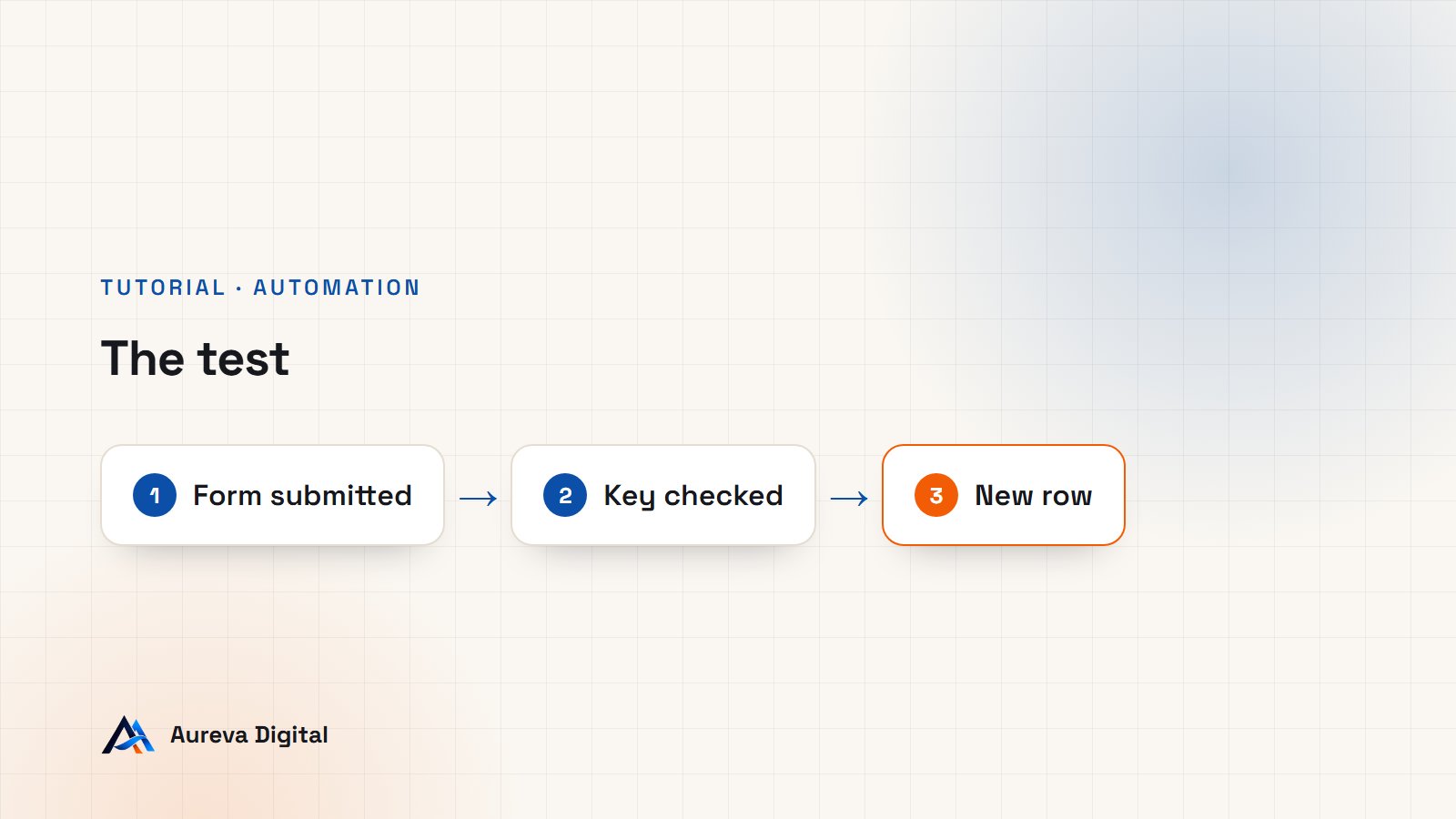
- Open your contact page in a private browsing window.
- Fill in the form with a recognisable name, for example “Sheets Test”.
- Submit, then open your Google Sheets spreadsheet.
Within a few seconds, a new row should appear under your column headings. If it does, you are done: every enquiry will now add itself.
Step 7: secure and maintain it
- Keep the key secret. Do not publish it in a screenshot or in a public code repository. If it leaks, change it in the script and in WordPress.
- Do not share the
/execaddress. Together with the key, it allows writing to your spreadsheet. - After changing the script, you must redeploy: Deploy, then Manage deployments, then edit the existing deployment and choose “New version”. Otherwise the old version keeps running.
- Protect yourself against formulas. A malicious visitor can type text starting with an equals sign. To stop it being interpreted, add an apostrophe in front of any value starting with
=,+,-or@before writing it to Google Sheets.
Common errors and how to fix them
| What you see | Likely cause | Fix |
|---|---|---|
| No row appears | The address does not end in /exec | Copy the Web app URL again, not the editor’s address |
| No row appears | “Who has access” is not set to “Anyone” | Edit the deployment |
| No row appears | The key differs between the script and WordPress | Copy and paste the same key on both sides |
| An empty row with only the date | Field names do not match | Check your field IDs from step 5 |
| Script changes are ignored | The script was not redeployed | Create a new version of the deployment |
| “getSheetByName” error | The tab is not called “Enquiries” | Rename the tab or correct the script |
To see what happens on Google’s side, open the Apps Script editor, then the “Executions” menu in the left column: every call received is listed, with its error if there was one.
Going further with Google Sheets
Once enquiries are in Google Sheets, a few simple additions change your day-to-day:
- A “Status” column with a drop-down list: To call back, Quote sent, Won, Lost.
- Conditional formatting that turns enquiries orange when they have had no reply for more than two days.
- A second summary tab that counts enquiries per month with the
COUNTIFfunction. - A notification: in Google Sheets, the Tools menu offers notification rules so that you are emailed on every change.
The same script can feed several tabs. On our own site, a single script files contact enquiries, client-area clients and prospects into three different tabs, according to a “type” field sent by WordPress.
What actually happens, explained simply
A system you understand is easier to fix. Here is the journey of an enquiry, from your visitor to your spreadsheet.
- The visitor clicks Send. WordPress receives the answers and does what it already did: it sends you the notification email.
- WordPress prepares a small packet of data. The packet is in JSON, a standard way of writing information as labels and values: the label “name” with the value “Claire Martin”, the label “email” with her address, and so on. Your secret key travels in the same packet.
- WordPress sends this packet to the script’s address. This is called a webhook: an address that waits to be handed data.
- The script opens the packet, compares the key received with its own, then writes a row in the “Enquiries” tab.
- The script replies “ok”. WordPress does not wait for that reply, it has already moved on.
Two practical consequences. First, labels must be written the same way on both sides: if WordPress sends “phone” and the script reads “tel”, the column will stay empty. Second, the system is one-way: editing a row in Google Sheets changes nothing on your site.
A complete example: from form to follow-up
Take a beauty salon that receives about ten enquiries a week. Before, the manager read her emails between two clients and forgot one in five. With this setup, each enquiry is added to Google Sheets the moment it arrives.
She added three columns on the right: “Status”, “Called back on” and “Notes”. Each morning she filters the Status column on “To call back” and works through the list in order. On Fridays, a second tab tells her how many enquiries came in during the week and how many became appointments. Within a month she knows which day brings the most enquiries and which treatment is most in demand.
None of this requires customer relationship software. For a small business, a well-kept Google Sheets spreadsheet is enough for a long time, and it prepares the ground for the day a proper tool becomes necessary: your data is already clean and organised.
What if you do not want to write code?
This method involves copying code, which does not suit everyone. Three other routes exist.
- A dedicated plugin. Several WordPress plugins connect a form to Google Sheets in a few clicks. They are often paid beyond basic use, and add one more plugin to maintain.
- n8n or Make. These automation tools receive the form and write to Google Sheets without code. They are worth it as soon as you want to chain several actions: send a message, create a task, send a welcome email. We compare them in our article on n8n and Make automations for a small business.
- Have it done. If you would rather not touch code, it is a short job for a developer. It is one of the automations we set up for our clients.
Personal data: what to plan for
A name, an email and a phone number are personal data. By copying them into Google Sheets, you entrust them to a second service, on top of your site. Three precautions are enough in most cases:
- Say so. Add a sentence to your privacy policy stating that enquiries are copied into a follow-up spreadsheet hosted by Google.
- Limit access. Share the spreadsheet only with the people who need it.
- Tidy up. Regularly delete the rows of old enquiries that led nowhere.
Frequently asked questions
Is it really free?
Yes. Google Sheets and Apps Script are included in a free Google account. Google applies daily usage quotas to Apps Script, far above what a small business contact form receives.
What happens if Google does not respond?
WordPress does not wait for the reply, so your visitor sees no difference. However, the row is not created. That is why you should keep the form’s notification email: the Google Sheets spreadsheet complements the email, it does not replace it.
Can I send several forms to the same spreadsheet?
Yes. Add a type field to the data sent by each form, and have the script choose the tab according to its value.
Do I need to redeploy if I change form?
No, as long as you do not change the script. Only the WordPress code changes.
Does it slow my site down?
No. The data is sent after the form is validated, without waiting for the reply. Pages load nothing extra.
In short
- Create a Google Sheets spreadsheet with an “Enquiries” tab and your column headings.
- Paste the script into Apps Script, with a secret key of your own.
- Deploy it as a web app and copy the
/execaddress. - Add the sending function and your form plugin’s block to WordPress.
- Test in a private window, then keep the key and the address to yourself.
Sources

Written by Amadeus AvlekaFounder of Aureva Digital, designer and web developer based in Cotonou. Learn more